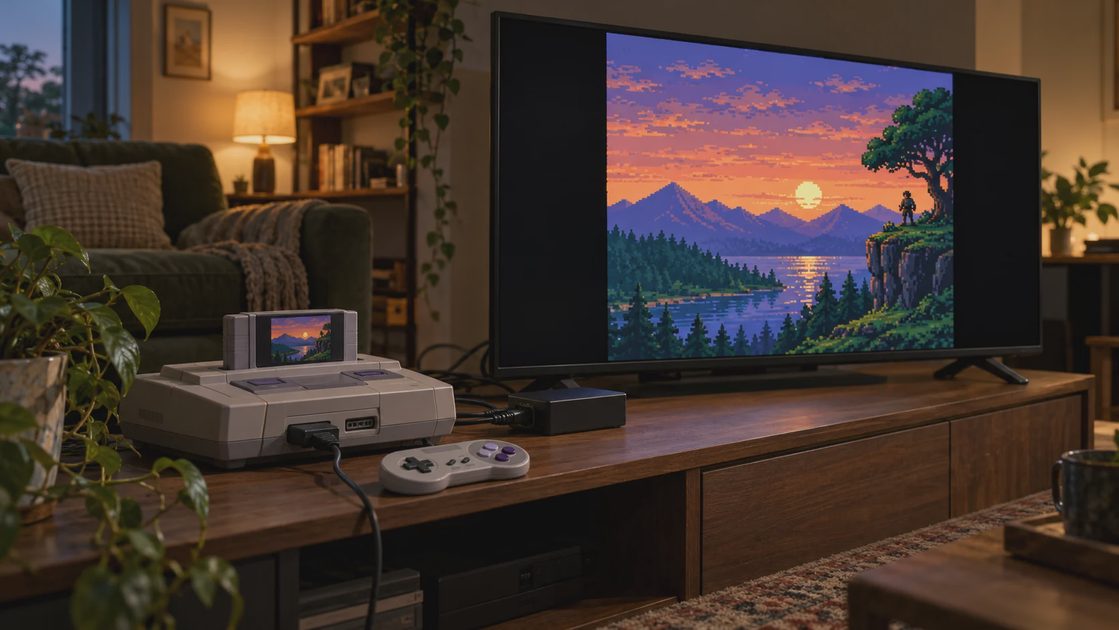
To play an original SNES on a modern TV, I would use a converter that explicitly supports 240p game signals, feed it the best signal your console supports, and keep the picture in a sensible 4:3 presentation. Getting an HDMI picture is only the first hurdle. Correct proportions, clean motion, and responsive controls matter more than the resolution printed on the box.
My living-room setup is a 55-inch LG C2 OLED with a RetroTINK-5X Pro between the television and my older consoles. I keep the presentation restrained: 4:3, no smoothing, and light scanlines when I want them. That is my preference, not proof that everyone needs the same equipment.
This guide covers original SNES hardware. A Super NES Classic Edition or a modern console running an official rerelease already outputs HDMI and needs a different starting point.
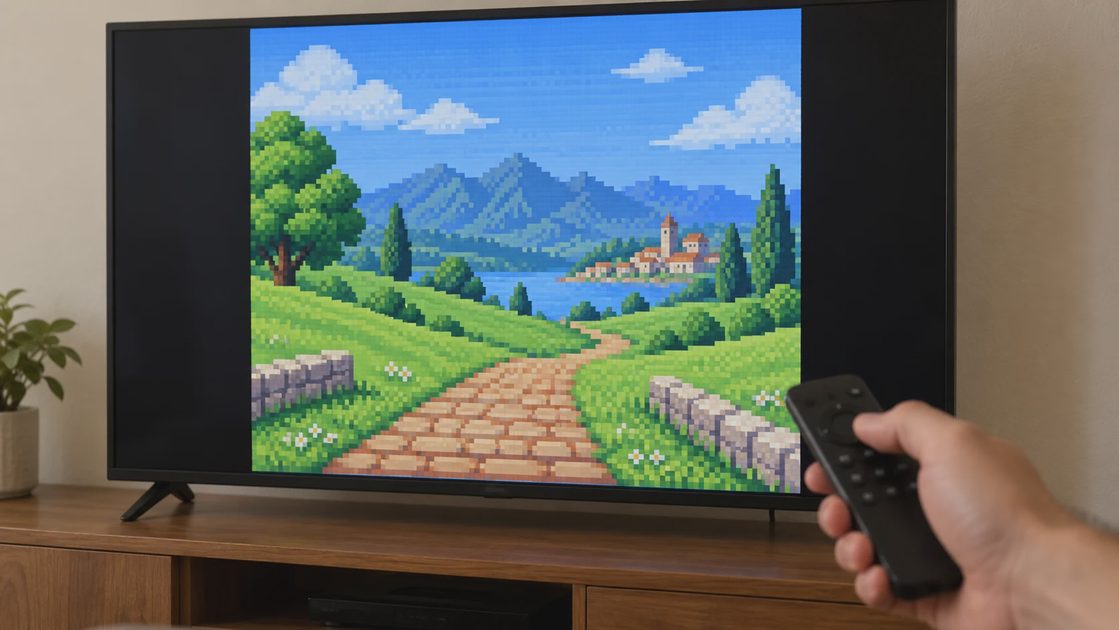
The photographs are AI-generated editorial illustrations, not images of my actual setup or measured picture comparisons.
Start underneath the console, not in the adapter aisle
Before buying a cable, I would read the model label and establish whether the console has been modified. A shared connector shape does not guarantee the same video outputs.
For the common full-size North American SNS-001, composite, S-Video, and RGB are available. The smaller SNS-101, often called the SNES Jr., needs modification to add S-Video or RGB; an ordinary cable cannot restore those missing connections. Imported PAL hardware also needs region-appropriate cables. I would check the exact model rather than assume that a cable advertised for several Nintendo systems is interchangeable.
Then I would choose the analog connection:
Composite: the yellow video plug, with red and white plugs for stereo sound. It can get you started, but fine edges and colors may look soft or smeared.
S-Video: a round video connector plus separate audio. On a compatible SNES, this is a useful middle ground between the original composite cable and a more involved RGB setup.
RGB: a cleaner starting signal, commonly carried through a correctly specified SCART cable into a compatible scaler. Check console region, cable specification, and scaler input together.
Component is another route, but a stock SNES does not directly provide YPbPr component video. A purpose-built transcoding cable converts RGB into that format. HD Retrovision's compatibility information identifies supported models; its cables still carry standard-definition video, so they do not solve TV compatibility by themselves.
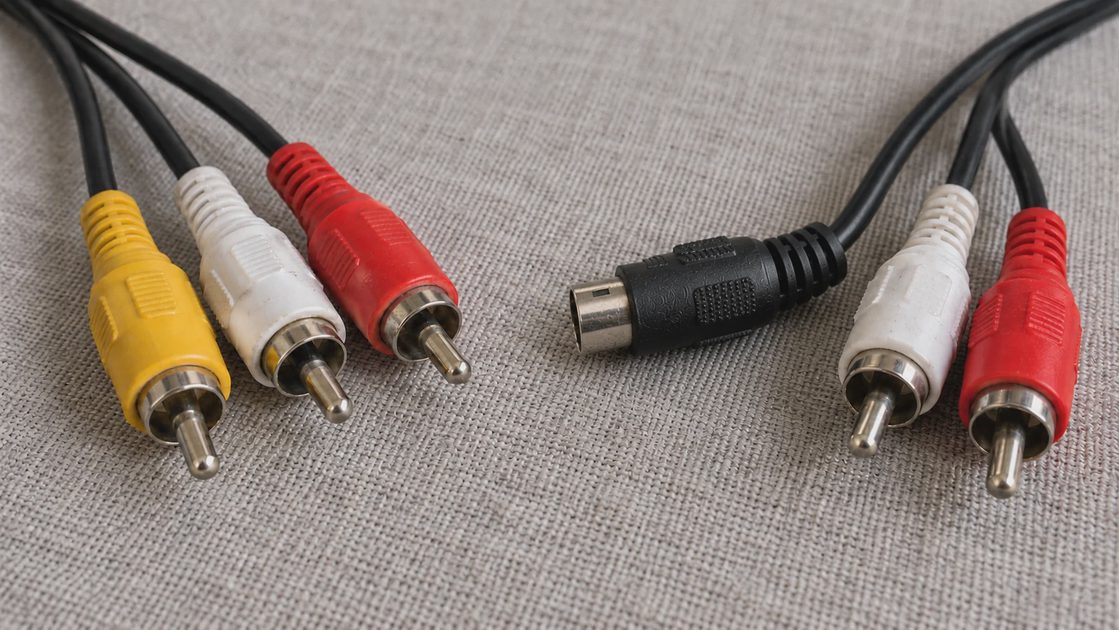
I would keep a working S-Video arrangement if it already looks good from my seat. RGB is an available improvement, not an admission requirement for enjoying the console.
The important specification is what goes into the converter
Most ordinary NTSC SNES gameplay uses the low-resolution signal commonly called 240p. Some software uses other modes, and PAL equipment needs its own compatibility checks. A television designed around modern sources may reject that old signal or process it as interlaced video, producing motion artifacts.
That explains why an SNES HDMI adapter can display an image and still deliver disappointing SNES picture quality. The converter may be scaling a poorly interpreted signal. A higher output number cannot recover information already lost through the analog connection or incorrect processing.
A passive plug adapter cannot turn the SNES's analog video into HDMI. There must be active conversion somewhere in the device or cable. I would read how a product performs that conversion rather than treat “SNES to HDMI” as a complete specification.
When choosing an SNES upscaler, I would look for:
Explicit support for 240p, the console's region, and the cable's signal type.
Documented processing latency, with the operating mode identified.
Aspect-ratio controls and an output resolution the television accepts.
A clear power requirement, usable instructions, and a return policy for compatibility problems.
For a concrete distinction, the RetroTINK-2X Pro line-doubles 240p to 480p; the television then scales that picture to its panel. My 5X Pro offers more scaling options, including standard 1080p output. These are different approaches to the same connection problem, not a requirement to buy the more elaborate one. The manufacturer's 2X Pro and 5X Pro specifications explain the input and output differences.
I would not choose a generic converter solely because it promises “1080p.” I also wouldn't discard an adapter that already handles my console correctly just because another device offers more settings.
Make the connection before tuning the picture
For a console, cable, and scaler confirmed to work together, this is the order I would follow:
With the equipment off, connect the SNES AV cable to the scaler. Match the signal to its designated input. S-Video needs its separate audio connections; RGB SCART carries audio when correctly wired.
Connect the scaler's HDMI output directly to the TV. Temporarily leave receivers, capture devices, and HDMI switches out of the chain so there are fewer things to troubleshoot.
Supply the scaler's specified power. A connector fitting into a USB socket does not establish that the source supplies enough power.
Select the TV's HDMI input and the scaler's actual analog input. Composite, S-Video, and component are distinct choices even when a device shares some physical sockets.
Power on and start with a supported standard output mode. On my type of scaler, I would try 1080p before experimenting with less widely supported modes. Confirm picture and sound before changing filters.
If your television already has suitable analog inputs, you can try them first. I would still check motion and responsiveness; accepting the signal does not establish that the TV processes it well.
Keep the proportions, then remove the extra processing
For the SNES aspect ratio, I start with a 4:3 presentation rather than stretching the image across a 16:9 screen. Side bars are expected. A full-width picture can make characters broader without adding any playable space.
The scaler may already place a correctly proportioned picture inside its HDMI output. In that case, I would leave the TV displaying that frame normally instead of applying another shape correction. Check the visible result rather than forcing “4:3” in every device.
Next, I would turn off zoom or overscan cropping where the TV allows it, then check the HUD and screen edges. SNES games have varying active picture areas; some small borders are normal. Cropping them away is a preference that can also remove useful content.
I use the TV's game mode for the active HDMI input. I would disable motion interpolation and begin with extra noise reduction and edge enhancement off. Menu names vary, so I wouldn't copy another television's numerical settings blindly. A bright outline around text can be sharpening rather than extra detail; I would lower that processing before replacing the cable.
Scanlines come last. They can change the character of the image, but they also darken it. I prefer a light touch from a normal viewing distance. If making the picture look more “authentic” makes text harder to read, I would back the effect down.
When something still looks or feels wrong
I would change one thing at a time and repeat the same familiar scene. Otherwise, it becomes difficult to know which adjustment helped.
Symptom | What I would check first |
|---|---|
No picture | Power, selected inputs, console operation, and the TV's support for the scaler's output mode |
Sound but no picture | Video connector/input selection and compatibility; working audio does not prove the video path works |
Wide characters or missing edges | Stretch, zoom, overscan, and whether both devices are correcting the shape |
Soft colors or crawling edges | Whether composite is the limiting connection before buying a higher-resolution scaler |
Artifacts during motion | Whether 240p is being handled correctly; test before assuming the cartridge is faulty |
Controls feel late | TV game mode, converter processing mode, and controller connection |
For SNES input lag, I would temporarily use a known-good wired controller and keep the display chain unchanged. That removes one variable; it doesn't prove the remaining delay comes from the TV. A familiar jump can reveal an uncomfortable setup, but it cannot produce a trustworthy millisecond measurement.
If you already have a way to run homebrew on the console, the free 240p Test Suite offers purpose-built patterns for evaluating display processing and geometry. I would use its appropriate patterns to investigate a specific concern. Simply launching the suite is not a latency measurement, and I wouldn't buy extra hardware just to complete a checklist.
My stopping point is practical: the picture holds steady, proportions look sensible, text is readable, and the controls feel comfortable. Before ordering anything, write down your console model, intended cable signal, and converter's supported input. Those three details will prevent more expensive mistakes than another evening spent comparing resolution labels.